

You connect to a remote server, check a few things, close the window, and move on with your day. Seems harmless. But what if that session left behind a trail of visual breadcrumbs? Not log entries. Not metadata. Actual images of what was on your screen.
That's exactly what's happening on every Windows machine in your organization that has ever used Remote Desktop.
What's Happening
Windows has a built-in performance feature called the RDP Bitmap Cache. It saves small image tiles from Remote Desktop sessions so future connections load faster. Think of it like your browser saving thumbnails of websites you've visited. Except these thumbnails capture everything that was visible during the session: open documents, internal tools, email inboxes, even credentials typed into visible fields.
The cache stays on disk after the session ends. It requires no admin privileges to access. And as Palo Alto Networks documented in their RDP Cache Hunting research, attackers who gain access to these files can reconstruct session frames and recover usernames, passwords, and sensitive documents from the cached tiles.
Why It Matters to You
This isn't an exotic attack that only nation-states pull off. The cache sits in a standard user folder on every Windows machine that has ever launched an RDP connection. An attacker who lands on a single workstation can collect it without elevating privileges, without touching sensitive files, and without triggering most security alerts.
According to Palo Alto Networks' Attack Surface Threat Report, RDP represented 32% of overall security issues on the global enterprise attack surface. Groups like BianLian, Medusa, and Scattered Spider used RDP access as a primary entry point throughout 2025. Once inside, this cache hands them a free reconnaissance tool that most defenders don't even know exists.
If your team uses Remote Desktop for anything (and most teams do), this affects you.
How It Works
The attacker ends up with reconstructed screenshots of previous Remote Desktop sessions. Here's how they get there.

They locate the cache folder, which sits in the same spot on every Windows machine:
%localappdata%\Microsoft\Terminal Server Client\CacheNo hunting required. They compress it into a zip file and send it to a server they control over HTTPS. It looks like normal outbound traffic. Then they delete the zip to cover their tracks.
An example of what that could look like:
powershell -c Compress-Archive -Path ($env:LOCALAPPDATA+'\Microsoft\Terminal Server Client\Cache') -DestinationPath ($env:TEMP+'\run_bitmap.zip') -Force
# Exfil Not Shown (choose your own adventure)
# Delete The Evidence After Exfil
Remove-Item -Path "$env:TEMP\run_bitmap.zip" -Force -ErrorAction SilentlyContinue
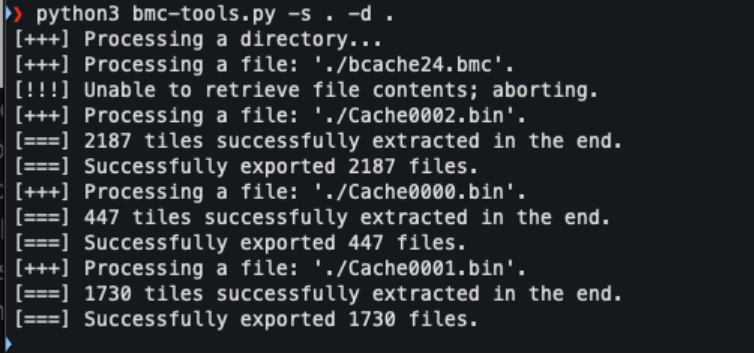
Once the cache is exfiltrated, they can run two free tools. The first, bmc-tools, breaks the cache into thousands of tiny image tiles.
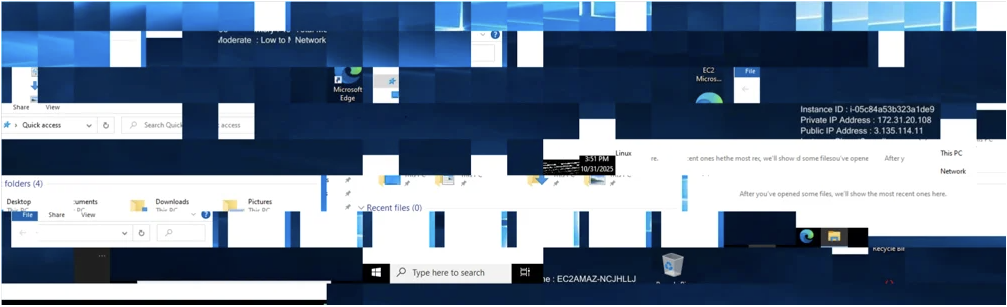
The second, RdpCacheStitcher, lets them arrange those tiles like puzzle pieces into readable screenshots. The result isn't always a perfect image. But partial screenshots (like the image below) often reveal credentials, sensitive documents, or environmental details that inform the next phase of the attack.
Tipping Their Hand
The cache isn't just useful for attackers who are breaking in. It's also a tell when they're leaving. An attacker who used RDP during their operation has good reason to delete or corrupt this cache before they go. A suddenly empty bitmap cache on a machine with a history of Remote Desktop usage? That's worth investigating. The absence of evidence can be evidence itself.
What You Can Do
Do Today (5–15 minutes)
- Check whether your endpoint monitoring flags access to the RDP bitmap cache folder. If you're not sure, ask your security team.
- Confirm that outbound HTTPS transfers of compressed archives from temp directories generate an alert.
This Week (1–2 hours)
- Test whether your detection tools catch PowerShell compression targeting the cache directory. Then test again using a non-standard execution method. If the second test slips through, you've found a gap.
- Add the RDP cache directory to your file integrity monitoring if your tools support it.
This Month (planning or policy changes)
- Evaluate whether persistent bitmap caching needs to be enabled at all. A Group Policy setting can turn it off. Weigh the performance tradeoff against the risk.
- Include RDP bitmap cache review in your incident response playbook. Both reconstructed session data and the suspicious absence of cache files are worth documenting during investigations.
Bottom Line
The RDP Bitmap Cache is turned on by default, requires no special access to collect, and most security tools aren't watching it. The fix starts with visibility. Check whether your detections cover this path, test them honestly, and close the gaps you find. That's a Tuesday afternoon project that makes your environment meaningfully harder to exploit.
Latest Posts